
From approved timesheets to plant-hire invoices
A practical invoicing checklist for plant-hire offices: connect the hours worked, agreed charges and contract details before sending the invoice.

Check the work before preparing the invoice
To invoice plant hire from timesheets, match the recorded work to the correct customer, contract and agreed charges. Resolve missing hours or references first, then review the invoice before sending it. A timesheet is evidence of work; it is not, by itself, a complete billing instruction.
For operated plant and mobile-crane hire, the paperwork may need to account for both the equipment and the people. The contract tells you what was agreed. The timesheet helps establish what happened. Accounts needs a clear connection between the two.
This checklist is about organising the workflow. Your contract terms and agreed billing rules determine the charges; your normal accounts review still determines whether the invoice is ready.
Match each timesheet to the right job
Before reviewing amounts, check the reference. A familiar customer name is not enough when the same customer has several sites or contracts. Match the contract number, site, dates and resource so the hours do not land on the wrong invoice.
In UpRate, open Timesheets and choose the worker, contract and week to find the saved file. When preparing the invoice, review its supporting timesheets and contract documents in Finalise Invoice. Open the files to check that they belong to the work being billed.
- Correct customer and contract reference.
- Site and dates that match the job.
- The labour or asset the timesheet relates to.
- Recorded hours and any missing days.
- Approval or confirmation required by your business’s process.
Resolve exceptions before they become invoice queries
Check any difference between the booking and the recorded work. Extra hours, an extended hire, a changed resource or an incomplete timesheet should be understood before the invoice is finalised. Do not silently assume that scheduled hours and chargeable hours are identical.
For example, a booked day may have run longer than expected. Confirm the recorded time and the agreed treatment of those hours. If a customer reference is missing, ask for it while the job is still familiar rather than leaving accounts to chase it later.
Give unresolved items an owner and a next action. For example, record which hours need confirmation and who will ask the customer. Keep the invoice on hold until your team has resolved the charge and checked the supporting record.
Bring the contract charges into the invoice
Once the work is checked, prepare the chargeable items using the agreed contract details. Review quantities, units and amounts together. A correctly copied rate can still produce an incorrect invoice if the quantity or billing basis is wrong.
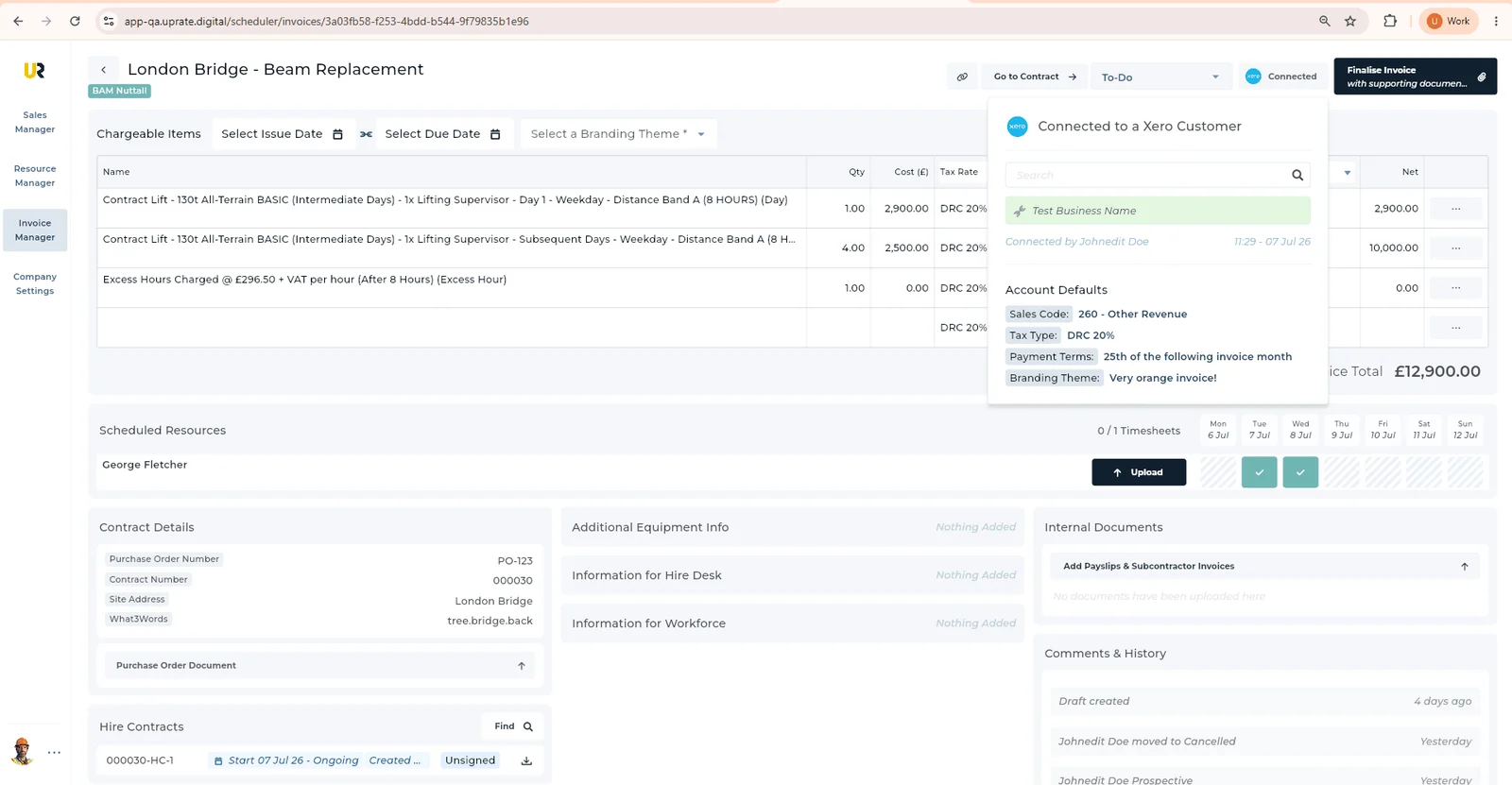
In UpRate, select the required document under Hire Contracts and choose Import. Use Find if the agreement is outside the displayed period. Import appends rows, so check descriptions, quantities, unit charges and tax, and remove duplicate or unwanted items before submitting.
The invoice view also keeps supporting information close to the chargeable items. Use the contract link when you need to check the original agreement, rather than reconstructing it from a separate email chain.
Review the invoice and its Xero connection
Make a final check of the customer, references, chargeable items and invoice details through your normal accounts process. If the job has changed since the contract was prepared, confirm that the final document reflects the agreed work.
Where your company’s Xero connection is available, check the customer link, charges, tax, sales codes, tracking, dates and branding. Open Finalise Invoice, select Submit to Xero and follow the confirmation steps. If the result is uncertain, check Xero for that invoice before retrying.
Before sending to the customer, check the invoice document, select the intended recipients and resolve the supporting-file inclusion choices. Keep a clear handover between the person confirming the work and the person responsible for the invoice.
Keep track of what needs attention next
Sending an invoice is not the end of the job’s administration. Make it clear which records are still waiting for information, which have been invoiced and which need follow-up. Use the status that reflects the actual position rather than treating ‘prepared’, ‘sent’ and ‘paid’ as the same thing.
In UpRate’s Weekly Invoices view, select the invoice week and use the invoice heading’s status control for an available To-Do, Review or Approved state. Sent is reached through sending. A sent invoice does not prove payment, so keep payment follow-up in your accounts process.
Review outstanding items at each invoicing cut-off. Accounts should be able to find the agreed charges, the evidence of completed work and the person responsible for the next action.
Keep the paperwork with the job.
Start with free Sales Manager for customers and contracts. Compare packages to add the invoicing and scheduling tools you need.
Get Started for FREE Compare packages